The item is in a remote warehouse, delivery time is 14-21 business days. More info
Delivery options - Select at checkout
Shipping @price - GLS
12,00
EUR
36,57
Incl. VAT 45,71
Total incl. delivery
60,71
Add to list
The function requires that you are logged in. Create a user and use our smart list system to keep track of future purchases, regular purchases or wish lists.
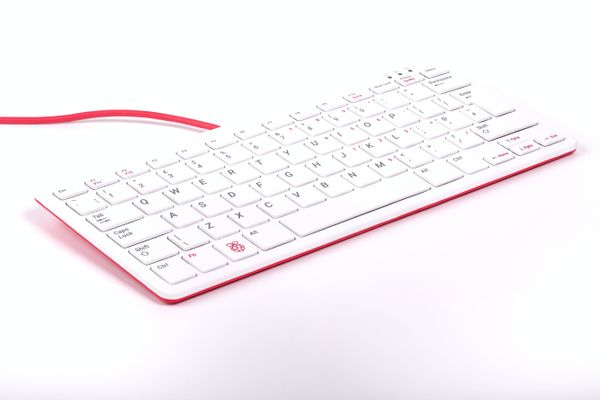
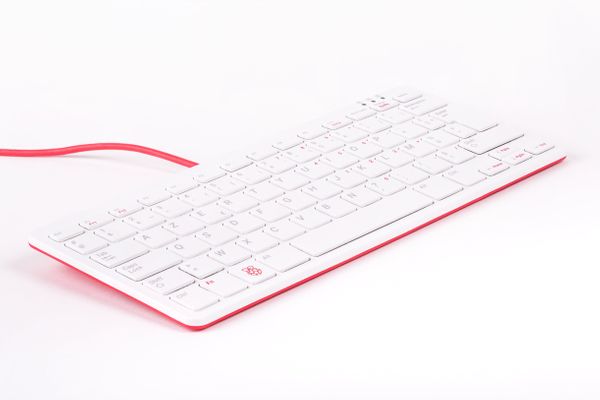
The official Raspberry Pi keyboard includes three USB ports for connecting external devices, available in raspberry red and white, or black and grey
Features of the keyboard The Raspberry Pi keyboard has three lock keys: Num Lock, Scroll Lock, and Caps Lock. There are three LEDs in the top right-hand corner that indicate which locks are enabled.
Num Lock – Allows use of the red number keys on the letter keys, effectively creating a numeric keypad. This mode is enabled and disabled by pressing the Num Lock key.
Caps Lock – Allows typing capital letters; press the Shift key to type lower-case letters in this mode. This mode is enabled and disabled by pressing the Caps Lock key.
Scroll Lock (ScrLk) – Allows use of the cursor keys for browsing web pages and spreadsheets without the mouse. This mode is enabled and disabled by pressing the ScrLk key while holding the Fn key.
Produktbeskrivelse
Raspberry Pi - tastatur - QWERTZ - tysk - hvid, rød Indgangsudstyr
Enhedstype
Tastatur
Grænseflade
USB
Forbindelsesteknologi
Kablet
Placering og layout
QWERTZ tysk
Antal taster
79
Egenskaber
USB hub
Farve
Hvid, rød
Generelt
Enhedstype
Tastatur
Grænseflade
USB
Antal taster
79
Placering og layout
QWERTZ tysk
Egenskaber
USB hub
Ekspansion / Konnektivitet
Interface
3 x USB 2.0
Diverse
Farve
Hvid, rød
Udstyr inkluderet
Micro-USB til USB-kabel
Overensstemmelsesstandarder
FCC
The item is known under the following item numbers in our system
EAN:
0765756931076
SKU:
SC0168
Why do I find that the same product is available on different item numbers?
Manufacturers often release the same product with different item numbers, typically just different versions of the packaging. For example, the packaging may be targeted at different countries.
We try our best to unify the products, but it can happen that the same product appears on different item numbers in our system.